
How To Use Google Voice To Send Mass Text

July 29, 2011 — 19 Comments

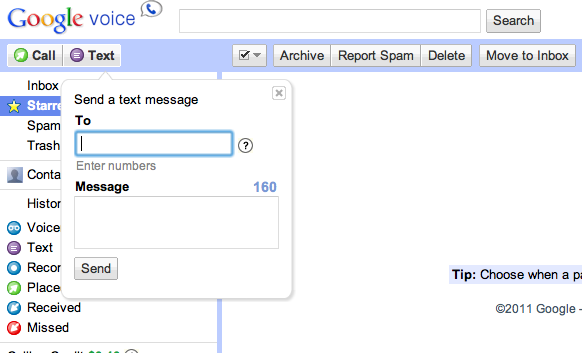
This fall we are doing a text (SMS) message campaign as part of our student ministry push to encourage reading the Bible.  Each weekday we will be sending a suggested reading to student who wants it; this reading will relate to what we are talking about during one of our weekly programs in each of the Middle School, High School, and College-Age Ministries.  There are several mass texting services out there, but the costs add up quickly.  Google Voice, with some work-arounds, can let you do that for free.

1. Set up a Google Voice Account. Google Voice is a great tool that allows you to make phone calls, transcribe voice mails, and text message.  The great news is that Google Voice lets you do the texting for free.

2. Get Phone Numbers. When we decided to do a texting campaign as a part of our weekly program, I put our Google Voice number on the screen and had students text “I’m in” along with their name.  This allowed me to for the most part have some idea of who would be getting the text messages.

3. Add phone number e-mail addresses to a group. Now this is where is gets tricky because Google Voice doesn’t on its own allow you to send Mass text messages, but fortunately because each phone number is attached to an e-mail address you can easily use your e-mail client to make this possible.  When you initially set up Google Voice it will forward text messages to your e-mail inbox.  When this happens, use the e-mail address (not phone number) from your inbox and add it as a contact and into your e-mail client’s group.  The e-mail address might not look pretty, but it works when you send a message.

Screen Shot 2011 07 29 at 8 30 33 AM

4. Send e-mail to that group. Once you have multiple e-mail address (which are each uniquely tied to a phone number) you can launch your e-mail client and send a group e-mail which sends out that same e-mail as a mass text message to everyone.

Screen Shot 2011 07 29 at 8 31 07 AM

For some other ideas of how you might utilize Google Voice in your student ministry check out 4 Ways to Use Google Voice in Youth Ministry.

RJ Grunewald

Posts Twitter Facebook

Was This Post Helpful to You? Consider Subscribing! Check out all our options for subscribing here! Don't miss a single post!

19 responses to How To Use Google Voice To Send Mass Text

  1. Awesome! Thanks for the How-to! I will pass this trick along. Blessings!

  2. Thanks for this post. I am a youth sponsor/youth pastor/music pastor in MN and have been looking for a way to send out announcements to all of the teens/all of the church. Thanks!

  3. this is really helpful as I was trying to do this with my google voice texting all the kids. There is another solution I came with:

    1. I use an iPhone app “Groups”

    2. It allows me to send a mass message from my iPhone using my google voice groups

    thanks for the info!

  4. This is fantastic!! Thank you RJ!

  5. I’ve been looking for a while to figure out the best (free) way to do mass texting. This is by far the easiest, both for us as a staff and the rest of the church family. Implementing this church-wide – one number for all the different ministry areas. So glad I found this – thanks!

  6. Looks like Google caught on…just tried setting this all up, sent myself a test message and it was immediately sent back to me by Google, saying that there was a “permanent failure”…. are any of you still able to use this service in this way?

  7. Wow! Thank you for the tip. I’ll have to pass it along. May you do the same for voice messaging?

  8. Just want to check and see if you have any problems with these email addresses ever having stopped working?

  9. I don’t think there is a problem. The guy above tried to send the emails using a different account than his google account. My question is did the emails ever seem to expire when you were mass texting you classes.

Leave a Reply

*

Text formatting is available via select HTML. <a href="" title=""> <abbr title=""> <acronym title=""> <b> <blockquote cite=""> <cite> <code> <del datetime=""> <em> <i> <q cite=""> <strike> <strong>

Have you Subscribed via RSS yet? Don't miss a post!